


A longer product shot is useful only if the face, clothing and camera still belong to the same scene. Announced on November 5, 2026, Google’s Gemini Omni 1.2 Flash raises single-generation video length to 15 seconds while improving reference following and conversational editing. The practical distinction is between what the model supports and the modes exposed by the application you use.
What 15 seconds and $0.07 buy
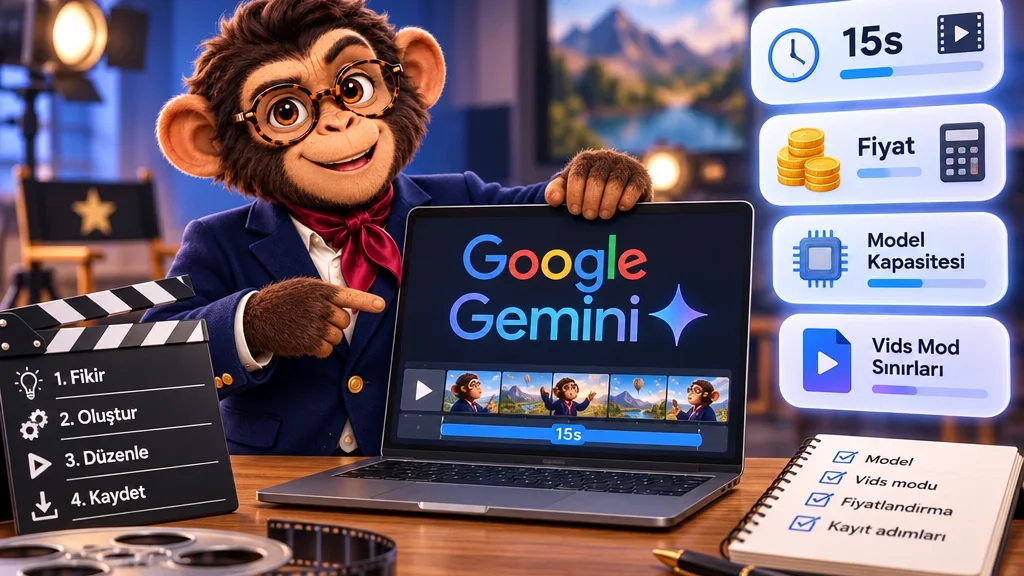
The previous ten-second ceiling rises to fifteen, with duration selectable in one-second steps from three to fifteen seconds. That creates room for a product reveal, a completed movement and a short ending within one clip. A shot need not fill the maximum duration: describing only the action you need helps establish the editing rhythm from the start.
Google lists 720p generation at $0.07 per second, 30% below Omni 1.1. At that rate, one fifteen-second generation comes to $1.05. That calculation covers the duration of a single generation; further attempts, other resolutions and additional processing need separate consideration. The API rate should also be kept separate from app subscriptions and usage allowances.
Choose an entry point
Developers can work through the Gemini API, AI Studio or Google Cloud. Fifteen-second generation in the Gemini app is rolling out to Google AI Ultra subscribers. The Vids announcement lists personal Google accounts and eligible Workspace editions including Business, Enterprise and Education Plus. Its rollout began November 5, with one to three days specified for visibility.
On a computer, open “Create AI videos” in Vids and choose “Create.” Describe the subject, location, movement and camera, then add reference images where useful. Use the “Omni” controls to select duration, landscape or portrait format and an offered resolution. After “Generate,” add the chosen clip to the project with “Insert.” The help documentation specifically recommends insertion if you want to access and edit it in another session.
Refine a shot instead of restarting it
Character, product and style images can guide the model, alongside short motion references. Google describes follow-up editing of the same clip, such as changing its background or lighting. Its Cloud announcement places audio references behind an allowlist.
I would establish the shot in a lower-resolution draft, then change one variable at a time. If the identity, clothing and motion already work, asking only for a lighting change creates a clearer workflow than redefining the whole scene. It becomes easier to see which instruction affected which detail.
Check the application mode and save the result
Vids help describes uploaded-video editing as a three-to-ten-second mode; with longer uploads it processes the final ten seconds. In the European Economic Area, UK, Switzerland, Illinois and Texas, that mode supports editing previously generated AI clips rather than uploading external videos. The model’s general fifteen-second announcement should not be applied to every application mode.
For API workflows, stored and asynchronous interactions are retained for up to seven days. In Vids, session history disappears when the tab closes, making insertion into the project important. Google also identifies fast sports action and complex physics as areas still being improved. A short draft with one movement is a useful way to assess those scenes before attempting a longer shot.