

A blue cup sits on a windowsill. You want the camera to slide past it just as the steam catches the light. In Google Vids, Google’s video creation and editing app, you can describe that shot and generate a clip between 3 and 15 seconds long. Google introduced Gemini Omni 1.2 Flash in Vids on 5 November 2026 and announced free clip generation for personal Google accounts.
What the monthly allowance covers
At launch, Google said you could make up to three 15-second videos a month at no cost. Its current account table lists 60 seconds of AI-generated clips per month for a personal Google account. The announcement counted full-length clips. The table gives you a budget in seconds of footage, which matters when you’re planning several shots of different lengths. With a work or school account, your administrator controls access to Vids and its generative AI features.
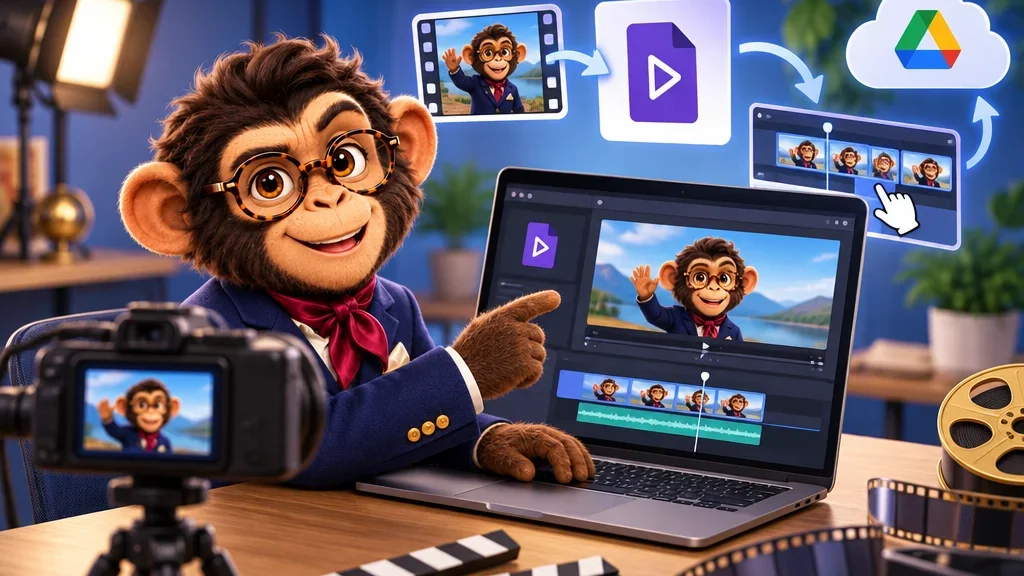
Describe the shot or bring a reference
On a computer, open Google Vids and choose Create AI videos. If you already have a project open, select AI video on the right. Choose Create and write a prompt, the text instruction that tells the model what to make. For the cup shot, tell it where the cup sits, which way the camera should move and when the steam should catch the light.
If the cup needs a specific shape or glaze, use Ingredients to attach reference images. Google documents up to seven in Create. A reference gives the model a visual example to work from. To set a single existing photo in motion, use the separate Animate mode and describe how the elements or the camera should move.
Set the frame and keep the take
Open the Omni menu to choose the duration and frame shape. Use landscape (16:9) for a wide frame or portrait (9:16) for a vertical one. Google’s instructions list 720p and 1080p as resolution options, which determine how many pixels the frame contains. Check which options your account shows before planning a 1080p shot around the free allowance.
I’d start the cup shot with a short take in the final orientation. It uses fewer seconds of the monthly allowance, and you can see whether the cup stays in frame as the camera moves before trying a longer version. Select Generate, then Insert when you have a take you want to keep. Once it’s in the project, you can place it on the timeline, where you arrange clips in order. Vids clears the session history when you close the tab, so insert the take before you leave.
Ask AI about this article
Opens in a new tab with the question filled in.