
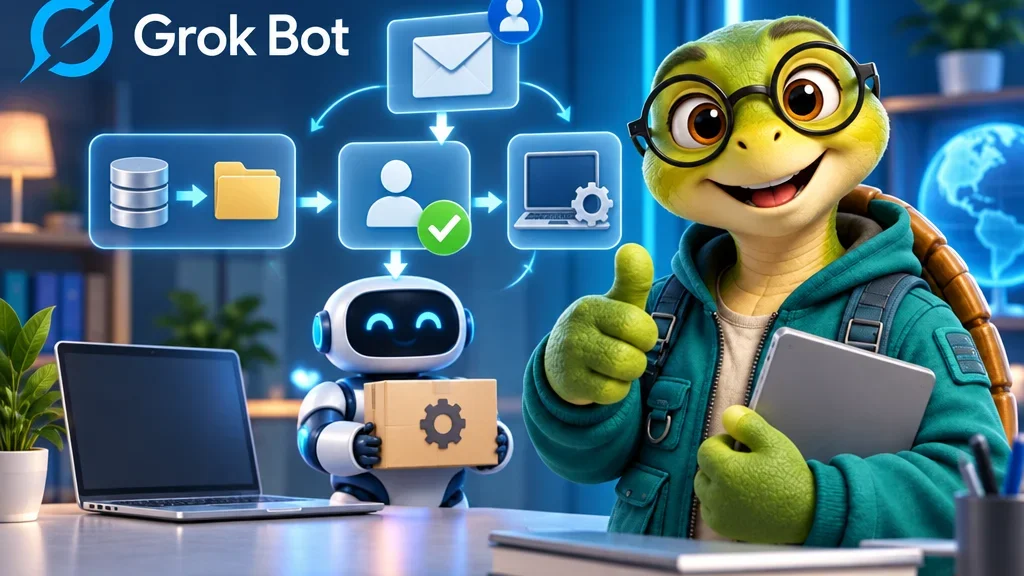
Say you ask Grok Bot to draft an email with an update for a client. Another bot can review the draft, and you can require approval before it goes out. The rule that stops the send lives in Auto-review, the feature that checks an action before a bot takes it.
The notes for version 0.77.0, dated 26 October 2026, describe a Permissions section in Settings. It puts rules that always ask for approval and rules that let actions proceed without asking in two lists. The release notes list 0.75.2 as the minimum version for both the Permissions section and memory import.
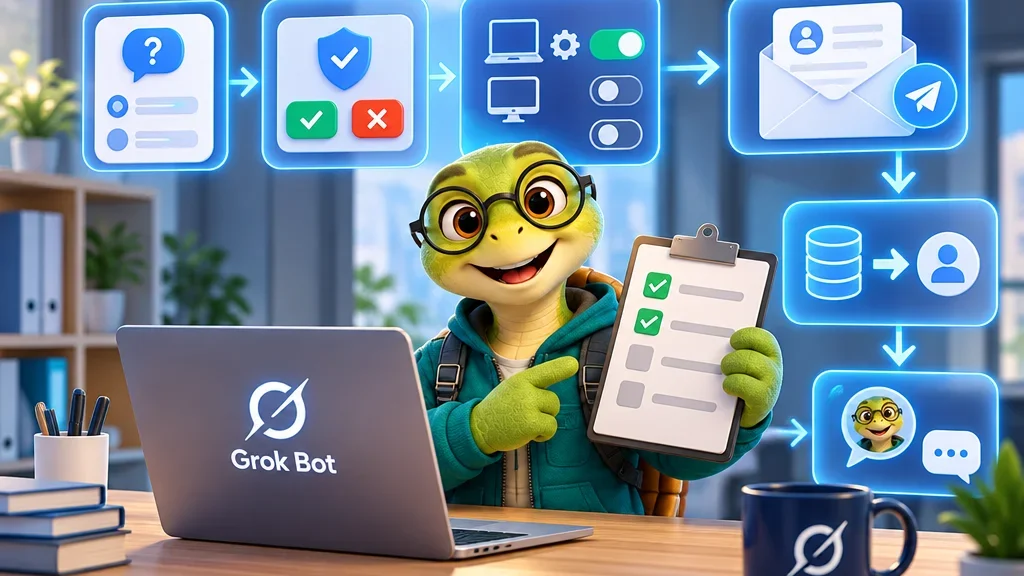
Which cards ask for a decision?
A question card collects information. A bot can walk you through several questions on one card, and you can write your own answer when none of the options fits. In the client example, the bot might ask which points the update should cover.
An approval card shows the proposed action and its inputs, then waits for your decision. If both a rule that asks first and a rule that lets the bot proceed match, the rule that asks first takes priority. I’d put that rule on sending email to clients and let the bots prepare the draft. That gives you a clear point to check who will receive the update and what they’ll see.
Control commands on your own computer
Open the Computer section in Settings to set command permissions for each desktop. The default is to ask every time. You can disable command execution on a desktop if the job needs no local files. The bot can still use its cloud computer, which runs separately.
Bring over preferences from another assistant
Start the memory import in Settings. Copy the supplied prompt into a chat with the other assistant, paste its reply back into Grok Bot and add it to memory. The preferences and context in that reply go to your primary bot.
Follow the work as bots hand it over
Bots could message one another at the August 2026 launch. A group chat gives you one place to follow work towards a shared result, such as a draft and its review. When a bot sends a task directly to another bot, the handoff appears in their own chats. The receiving bot can pick up the task and reply later.
Ask AI about this article
Opens in a new tab with the question filled in.