

Orkun v2 introduces ClipBoardLine as a way to organize the screenshots, text and links that accumulate while working on a computer. The Mac demonstration moves from a shelf of recent images to pinning, folders, editable text and a combined Library, with keyboard controls connecting the steps.
Extending an open-source clipboard shelf
The channel describes wanting more organization than its previous clipboard-history workflow provided. After seeing a screenshot-shelf application, it proposed additions for text and links. According to the channel, those contributions were not accepted because they did not match the original project’s direction, so it continued in a fork.
The repository identifies ClipBoardLine as a modified fork of the MIT-licensed Tendedero project. ClipBoardLine uses its own name and artwork and extends the shelf concept with a local Library, folders, tags and editing tools.
Opening the shelf and moving through images
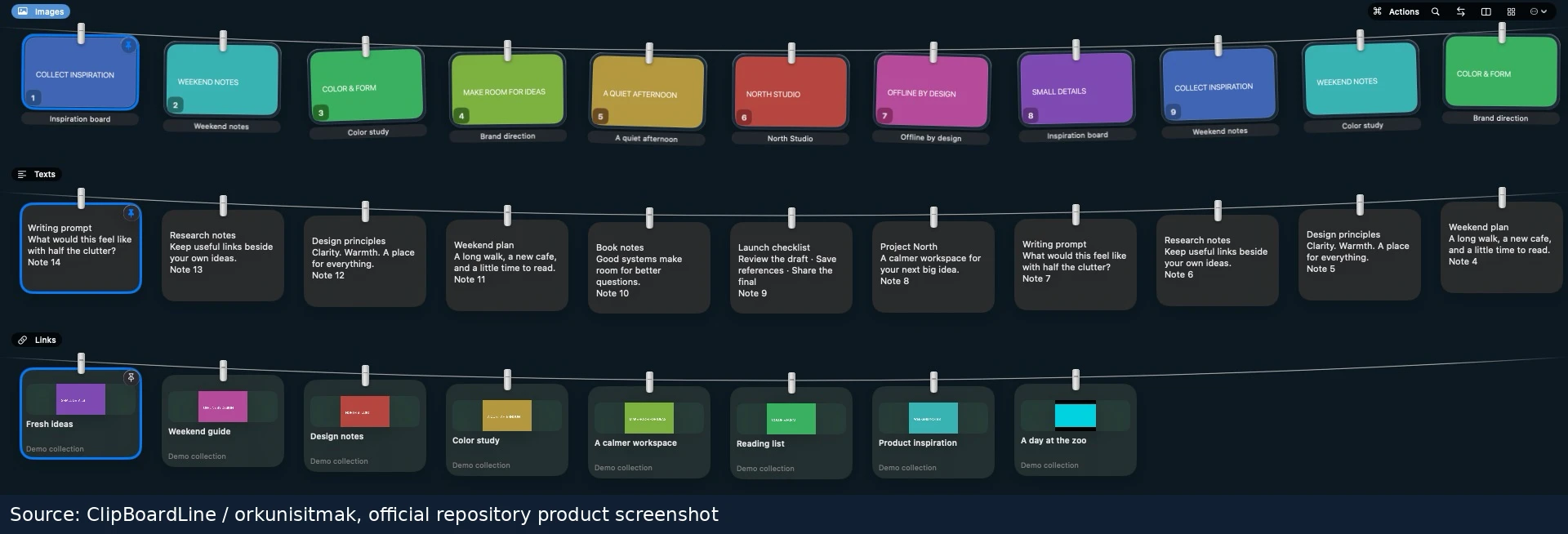
Taking a screenshot opens the shelf in the demonstrated setup, revealing earlier captures alongside the new one. The channel also notes that a shortcut can open the shelf without taking another screenshot. Number keys select visible items, arrow keys move through them and navigation remains available while previewing an image.
For a crop, Orkun v2 presses C, adjusts the selection and confirms it with Enter. The resulting cropped image then becomes available to copy. Pressing Enter again performs the copy action in the demonstrated browsing flow.
Keeping useful items and recovering removals
The walkthrough contrasts temporary history with items the user wants to retain. Pressing P pins a selected item. S takes it off the shelf, and Backspace brings back an accidental removal. The channel also demonstrates selecting several images and copying them together.
Enter copies the selection, while Command–Enter pastes into the previously active application in the Mac example. This makes the shelf a place to prepare a selection before returning it to another working window.
Finding commands, changing settings and using updates
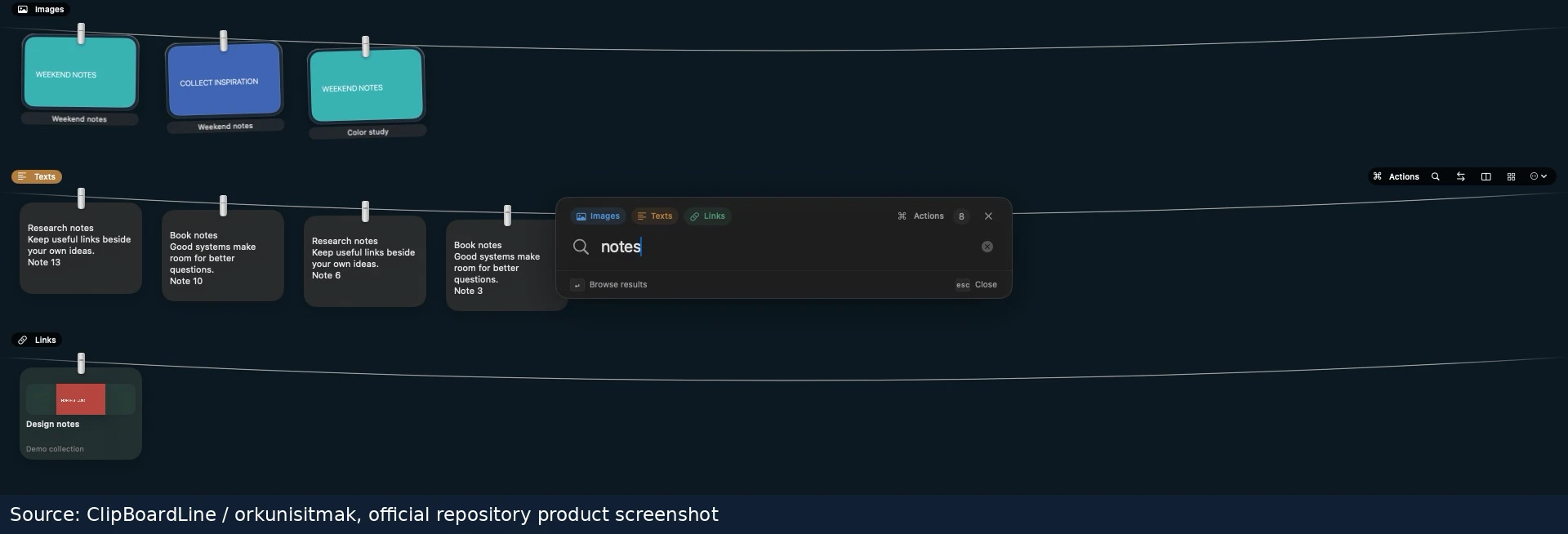
Command–K opens an Actions panel listing available operations and their shortcuts. Orkun v2 selects several images, finds the pin action and shows that it can be executed from the panel or with P. The same section switches the interface to Turkish and visits settings where shortcuts can be customized.
The channel describes updates arriving inside the app, followed by a click to install, rather than repeatedly returning to GitHub for a fresh download. The repository similarly distinguishes automatic update checks from installation initiated by the user.
Putting selected items in folders
Selected images can be pinned into a folder with Shift–P or through the command interface. The demonstration offers creating a new folder or using an existing one. For navigating the shelf, Command with an arrow moves to an end, while Option with an arrow jumps between pages in the Mac controls.
This adds organization to the immediate capture history: items can be kept as a group rather than remaining only in their original position among recent screenshots.
Switching to text and editing a copied passage
Pressing Tab moves to the text shelf. Orkun v2 previews copied text, presses E to edit it and uses Escape to save the changed version and leave editing. The channel then shows that text can also be retained, placed in folders and copied individually or in batches.
The workflow keeps the edited passage among the stored items, so the text shelf serves as more than a list of unchangeable clipboard entries.
Bringing links and all three shelves together
The links shelf contains copied URLs and offers the same pinning and organizational actions. Orkun v2 then displays the image, text and link shelves together. With several rows visible, the arrow keys move between them, allowing the different content types to remain available in the same browsing view.
Opening the Library and annotating an image
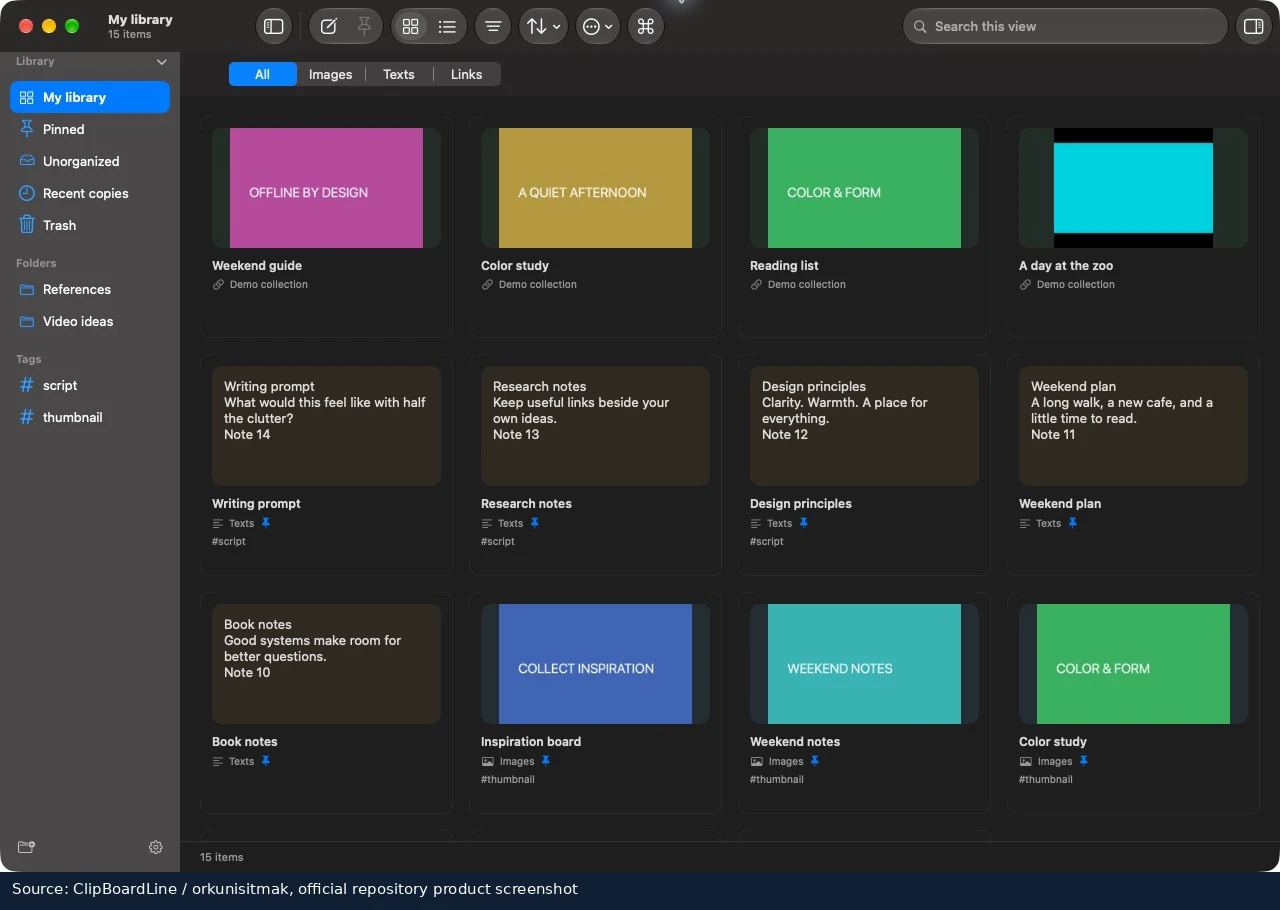
As the collection grows, pressing L opens the Library. It brings saved text, images and links into one window, including pinned items. Escape closes that view in the demonstration.
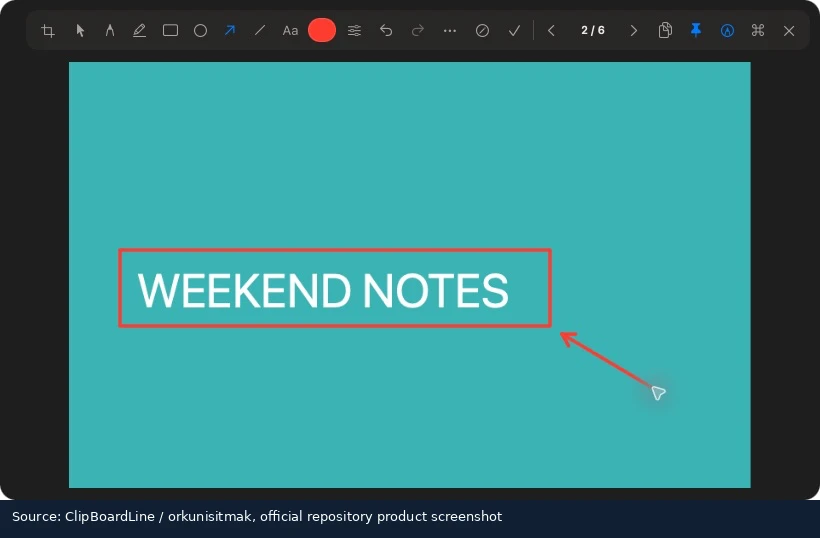
Back in an image preview, M opens the markup tools. The channel draws a circular annotation and then copies the marked-up version. This final example adds an editing step to the capture, organization and reuse workflow.
Orkun v2 presents ClipBoardLine as free and open source, with Mac and Windows editions. The demonstrated shortcuts and firsthand experience are on Mac; the channel explicitly leaves the quality of the Windows edition unconfirmed in its own testing. The project’s source and public releases remain available for others to use and develop further.