

Orkun v2 demonstrates Nashi, an open-source desktop toolkit that brings file conversion, image editing, video tools and window arrangement into a drag-and-keyboard workflow. The walkthrough starts with everyday tasks such as converting an image or making a PDF, then moves to extracting video frames and downloading public web media.
From a file-tool idea to Nashi
The channel describes discovering Tangerine through a social-media video and wanting a similar interaction with additional features. It says the development with ChatGPT took roughly seven to eight hours, using a product website and videos as references. The resulting project was named Nashi after another fruit. Its repository identifies it as an independent, MIT-licensed application inspired by Tangerine.
Choosing a release and an interface language
Orkun v2 opens the project’s GitHub Releases area and points to separate packages for Apple Silicon Macs and Windows. In the demonstrated settings, the interface can be switched between Turkish and English. The channel presents the app as free and describes its own experience on Mac, while explicitly saying it is unsure how well the Windows edition works.
Separate PDFs or one combined document
The Mac demonstration distinguishes two shortcuts. Holding Shift while dragging an image opens conversion choices; selecting PDF creates a PDF from that image. Repeating the action with several selected images creates separate PDF files for the selected items.

To combine images into one document, the channel instead holds Command and chooses Create PDF. The resulting document contains the selected images together. The sequence shows how the modifier key changes the operation while the initial action—dragging files—stays the same.
Redacting faces, making a collage and cropping
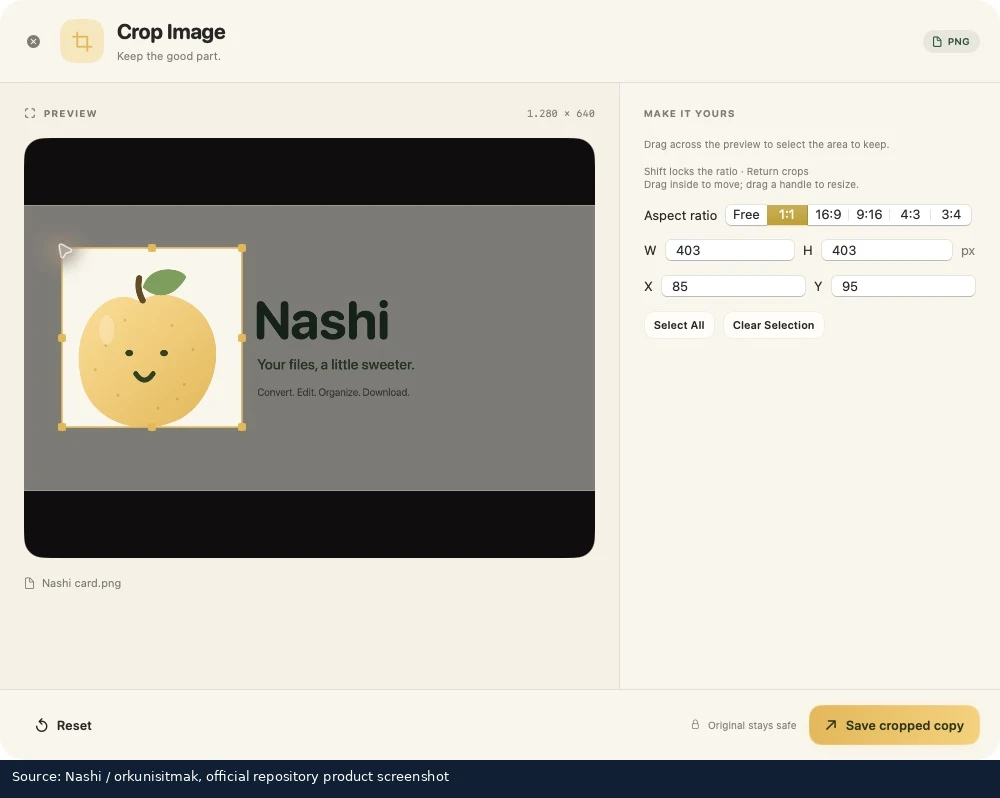
Next, Orkun v2 selects two faces in an image and applies the redaction tool. It then selects images for a collage, changes their arrangement and demonstrates cropping. After adjusting the crop area, pressing Enter produces the cropped version. These are shown as separate actions available from the same file-handling workflow.
Editing a clip and saving selected frames
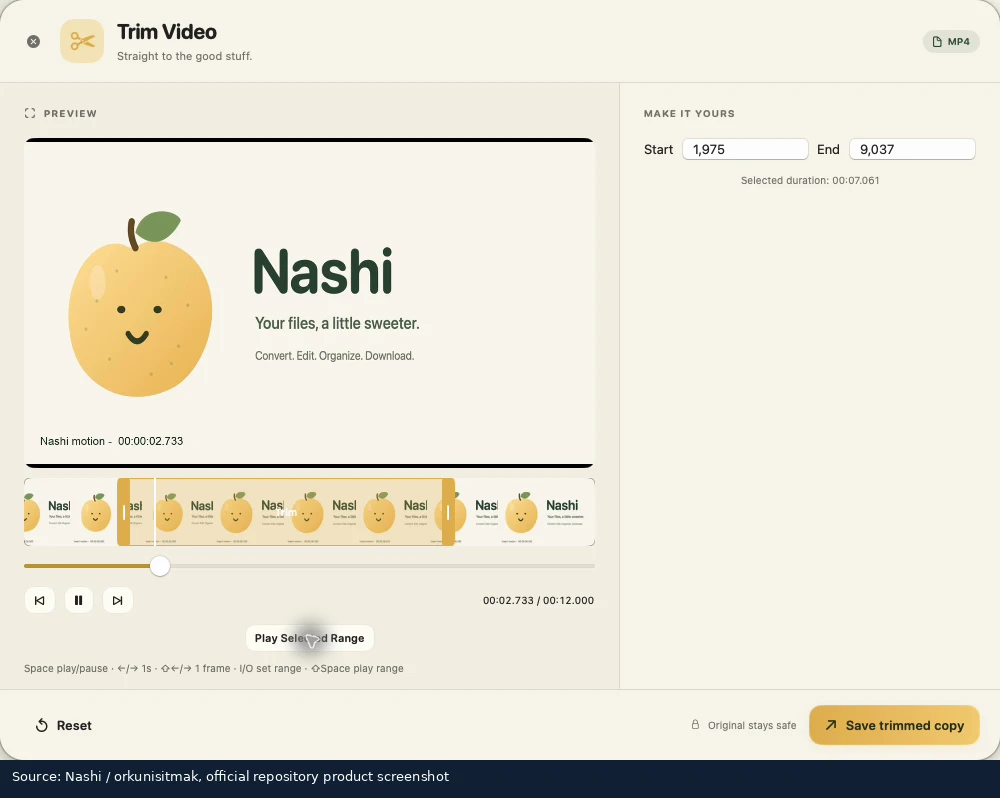
For video files, the channel lists redaction, compression, audio removal, trimming and speed changes among the available operations. It then picks moments from a clip, adding the selected frames to a collection beside the preview. Choosing Save Frames exports five still images in the demonstration.
The frame-selection sequence stays within the toolkit rather than opening a separate video editor. The channel moves through the clip, collects the images it wants and saves the selected group together.
Arranging windows with a modifier key
Another demonstrated addition is window positioning. While dragging a window and holding Command, Orkun v2 switches between layouts such as left or right placement, a third of the screen, half the screen and full-screen positioning. The channel says this replaces a separate window-arrangement application in its own daily workflow.
Dragging a web link into the download workflow
The final desktop example uses a dragged web-media link with Command to open download options. Orkun v2 demonstrates a YouTube download and discusses thumbnails, Instagram Reels and photos, as well as choosing video quality or audio output. These are presented through the channel’s example links and the options shown in the application.
The walkthrough ends on Nashi’s website, where an interactive browser demo lets visitors explore its tools and try supported conversions. The repository distinguishes real browser exports from desktop-only previews. Across the examples, the channel’s central workflow remains selecting a file or link, using a modifier key and choosing the operation from the resulting tools.