
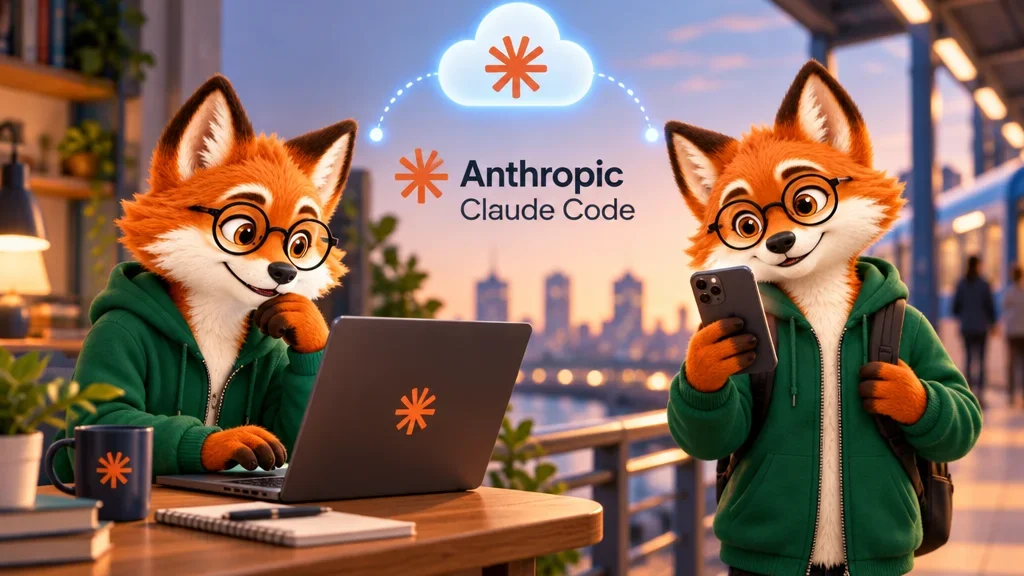
When you need to leave your desk while Claude Code is working, Remote Control lets you continue the same session from your phone. You can send another instruction, watch progress and respond when a decision is needed. Your computer still does the work.
Check the account and where the work runs
Anthropic’s current documentation lists Remote Control for Pro, Max, Ultra, Team and Enterprise plans. You must sign in to Claude Code with your claude.ai account; an API key does not provide this connection. Team and Enterprise owners must enable the feature. Enterprise organizations using custom roles must also grant the relevant permissions.
The feature requires a direct Anthropic connection. Amazon Bedrock, Google Cloud Agent Platform, Microsoft Foundry and gateway configurations pointing to a different host are unsupported. If the option is unavailable, the subscription and sign-in method are useful first checks.
Remote Control and cloud sessions have different responsibilities. Remote Control uses the files, tools and project settings on your computer. A cloud session runs on cloud infrastructure. Choose Remote Control when you want to keep steering an existing local project while away from the desk.
Open the local session, then connect
- In Claude Desktop’s Code tab, open a local session and select the correct project folder. An existing terminal or VS Code session also works.
- Enter
/remote-controlor/rc. Read and accept the activation confirmation shown on first use. - Sign in to the Claude mobile app with the same account and organization. Find the session under Code. You can also use the session list at
claude.ai/codein a browser. - If you use the terminal, open the displayed session URL or scan its QR code. Once connected, send a small follow-up request to check that you are addressing the right project.
A useful first instruction is: “Summarize the changes you prepared, then wait for my decision before continuing.” Keeping the first remote step small makes it easier to catch a mistaken session selection.
What the phone can do, and where data goes
The conversation and work progress stay synchronized across devices. You can send messages and files and answer permission prompts. File access and command execution remain on your computer. Some commands, including the terminal’s /plugin and /resume, require the local interface.
The computer establishes the connection through outbound HTTPS requests. It does not open an inbound port, and traffic uses TLS encryption. However, messages, responses and tool activity are stored on Anthropic servers to synchronize the conversation. Local execution therefore does not mean that every piece of session data stays exclusively on your computer.
The computer must remain available
Keep the computer on, online and running the application that hosts the session. Closing the terminal or the relevant desktop application makes the session unavailable remotely. An interactive session retries and reconnects when the network returns. In server mode, started with claude remote-control, an extended network outage of roughly ten minutes can cause the process to exit; start it again to reconnect.
This makes Remote Control a sensible choice for short interventions in local work already underway. If you intend to switch off the computer and leave the task running, choose a cloud environment from the beginning. Changing the device you use to give instructions does not change the machine carrying them out.