

Start with a folder, not a complicated setup
Nick Saraev’s channel presents a fast introduction to Claude Code for people who want to build useful things without starting as professional developers. The 4-minute-50-second video connects the initial desktop setup with the controls used to guide a project, preserve instructions and repeat successful work.
The walkthrough starts at Claude’s official download page. Install the Mac or Windows app, open it and create or sign in to an account. In the video, Chat is the conversation area, while Code is the area used to create and change project files. Claude Code requires an eligible paid plan. See the official website for current plans and pricing.
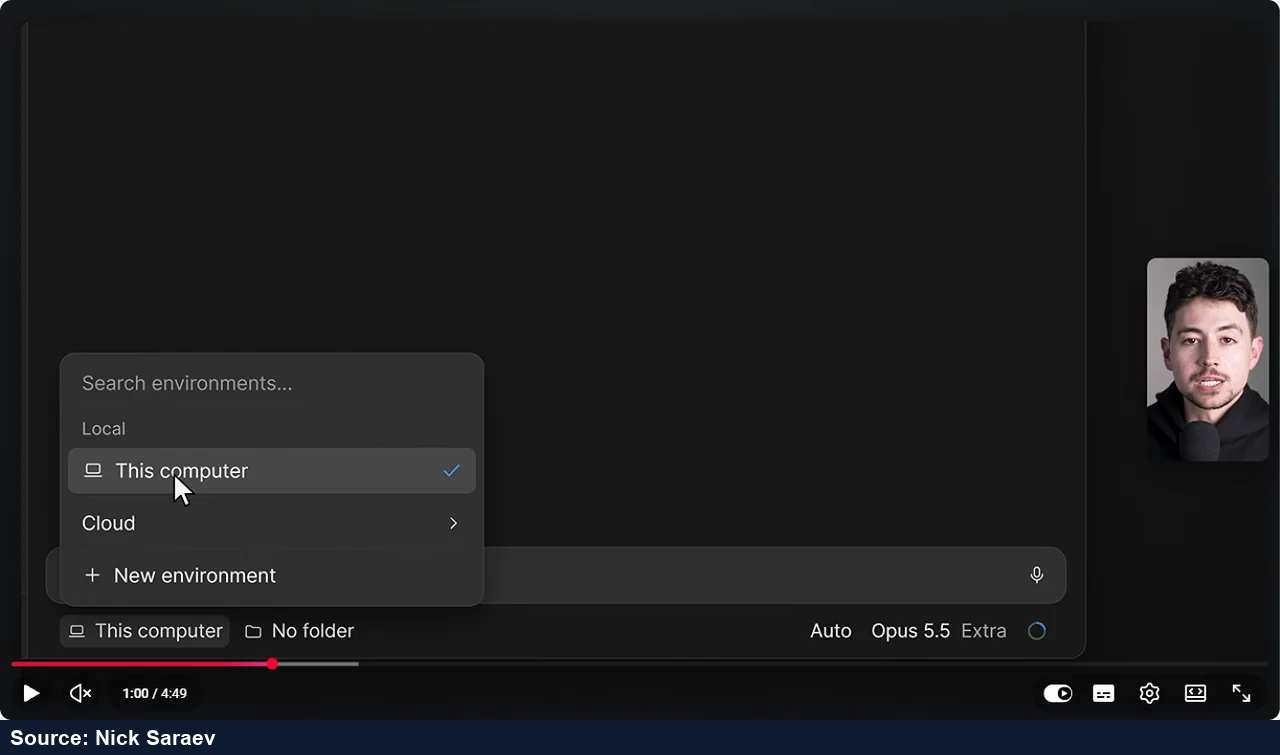
Create an empty folder for the project. In the prompt box, select Local, choose Open folder and point to that folder. It becomes the working place for the files Claude creates or modifies.
Describe the result and steer the work
The first example is a simple cleaning-company website with a booking form. The channel’s approach is to describe the intended result rather than dictate every intermediate step. A second example uses an apartment floor plan and listing photos to request a 3D visualization. The channel says that project also found furniture on Amazon and placed it in the virtual home.
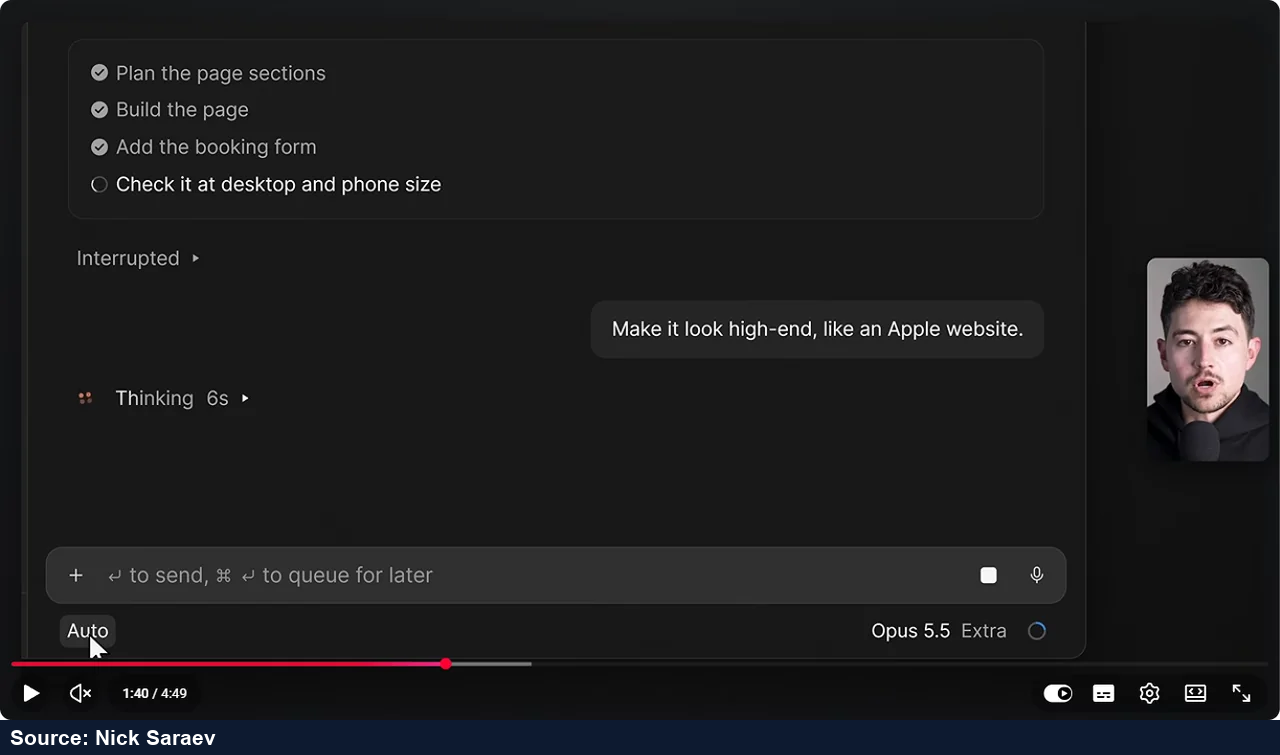
A task does not have to continue unchanged once it starts. The video shows stopping the work with the stop button or sending a correction so Claude can adjust its direction.
Choose how much permission and effort to give
The mode selector beneath the prompt controls how independently Claude proceeds. The video introduces three choices: Manual asks before changes; Plan explores the project and develops a proposed approach before implementation; Auto handles routine work with a background AI check on actions. The channel recommends Auto for its own workflow and points out that actions such as deleting files carry risk.
Model choice is separate from permission mode. The guide describes Haiku as the lower-cost option, Sonnet as the middle ground and Opus as the more powerful, more expensive choice. Effort controls how much thinking is devoted to the problem. The channel normally chooses medium or high. These settings also affect usage, so the video treats them as part of managing the account’s limits.
Keep project instructions between sessions
A conversation is a session. To carry project guidance into a new one, the tutorial introduces CLAUDE.md: a file Claude can read when work begins. Running /init prepares a starting version from the workspace. The instructions can then remain with the project instead of being explained from scratch every time.
The channel also explains context as the material accumulated in a session. Its practical recommendation is to start a new session when changing the subject or beginning a different build, rather than continue one increasingly long conversation.
Review changes and save repeatable work
When files change, plus and minus counters indicate added and removed lines. The browser preview on the right shows a website or visual app so feedback can refer to the actual result. The workflow is to inspect the preview, describe the desired adjustment and let Claude revise it.
Once a useful process works, the channel suggests asking Claude to turn it into a skill. A skill stores reusable instructions in a SKILL.md file. Examples in the video include editing YouTube videos, preparing client proposals, publishing a podcast, making visualizations and creating games. These are presented as examples of the channel’s own workflows, not separate tutorials in this short course.
Connect apps and share work with subagents
The plus button and Add connectors open connections to other tools. GitHub, Slack, Linear, Asana and Trello are among the examples named. The video also mentions custom plugins and mods for extending or changing how Claude Code works.
Subagents handle side tasks while the main session continues other work. The channel illustrates parallel work with a batch of 100 websites, describing it as taking approximately the time previously needed for one in its example. The point of the demonstration is the division of a larger job into work that can happen alongside the main task.

Schedule a task and view the result elsewhere
The final part introduces Scheduled tasks and Remote Control. Scheduled creates work that runs at a chosen time; the mobile Claude app is used to keep in touch with work through Remote Control. The channel ends by recommending an artifact when a task finishes: a simple visual web page that can communicate the result to friends or colleagues.
Together, the guide follows one chain: choose a project folder, describe a result, set the working controls, preserve useful instructions, inspect changes and reuse the process. Nick Saraev’s channel points viewers to its longer lessons for deeper examples.

