
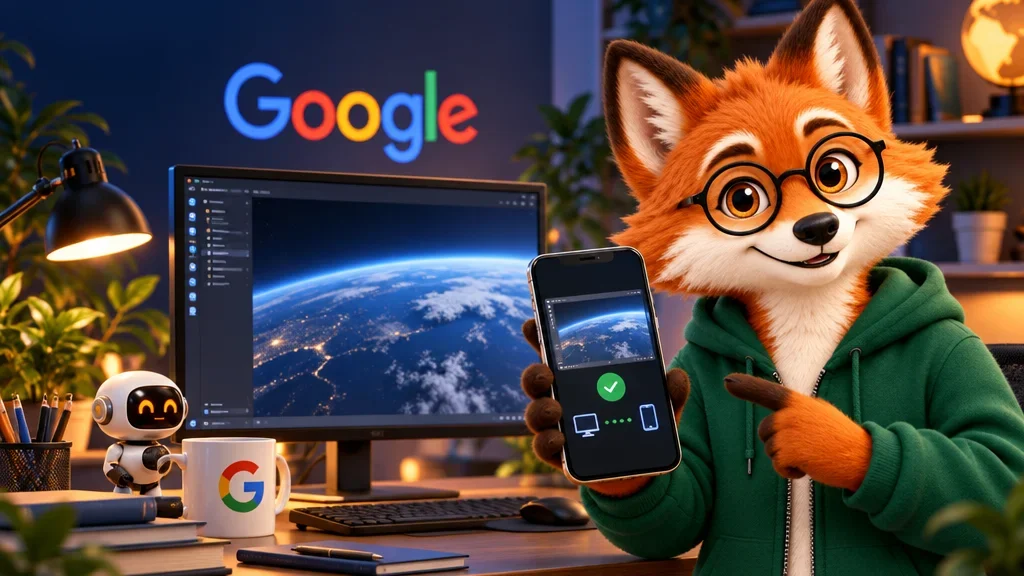
Tests are running on your desktop and you need to step away. Google Antigravity’s Remote Control lets you open that session from your phone and see what the agent is doing. The work continues in the desktop environment. The phone connects to that session.
Enable Remote Control on the desktop
In the Antigravity desktop app, open the application settings and turn on Enable Remote Control. Give the machine a recognisable name if you use more than one. Open the Remote Control Dashboard on your phone, sign in with the same Google Account and choose the machine. Google says you can review conversations, implementation plans and artifacts, such as screenshots or other outputs the agent produces. Adding the mobile web app to your home screen is an option if you want notifications when the agent finishes or asks for input.
Read the request before responding on a small screen
I’d start by monitoring a long test or reviewing a plan. On a phone, understanding an action is worth more than approving it quickly. If a request doesn’t make clear which project a command will run in, ask the agent to identify it. You can use the same session to review the plan and steer the next step.
Check the host if the machine disappears
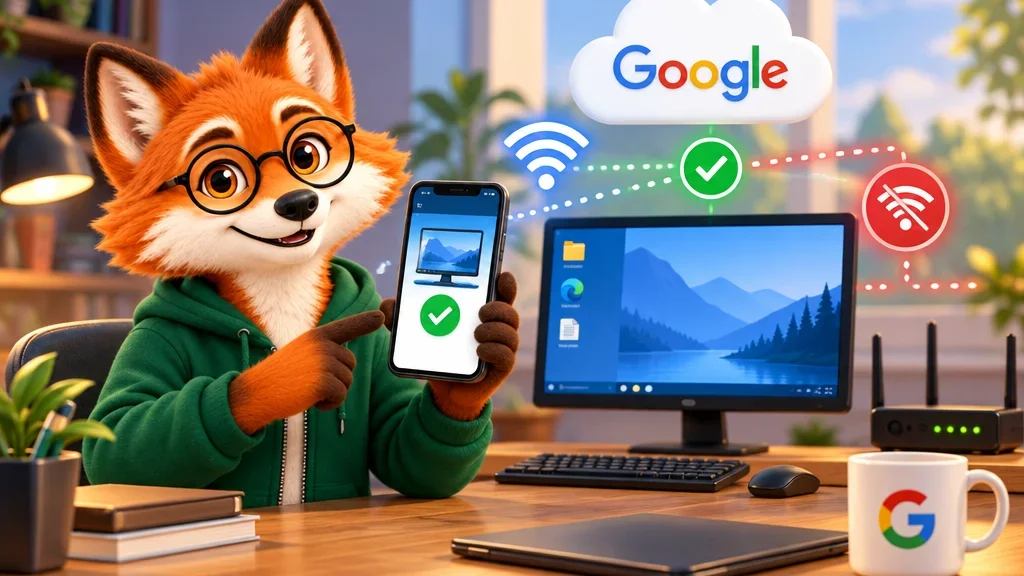
Google’s troubleshooting guide says the host needs an active internet connection and should be awake. If it doesn’t appear, check the account on both devices, the desktop setting and whether the computer is asleep. Losing the phone’s connection may simply require the web interface to reconnect. A sleeping host makes the desktop session unavailable from the phone.