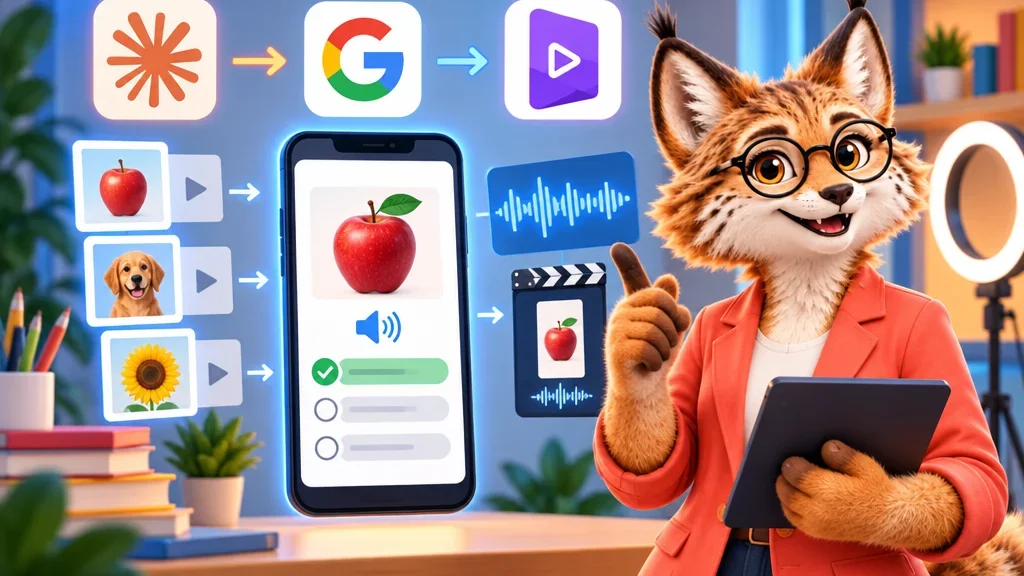
A whisk sits in the middle of a tall frame. The viewer has three seconds to name it in English, then hears “whisk” as the word appears. For a vocabulary quiz, that timing does as much work as the picture. You can draft the scenes in Claude and assemble them in Google Vids, where the image, answer and voice can each be adjusted.
Draft one scene per word in Claude
Claude’s free chat has usage limits. Start with one focused request. Give Claude a topic, a target language and the words you want to teach. Ask for one scene per word with a question, a description of the picture, a pause for guessing and the line to read aloud. For kitchen utensils, one scene might show a wire whisk on a plain counter, ask “What is this called?” and reveal the answer after three seconds.
Check each picture description against its answer before you build the scenes. A drawing that looks like a spatula teaches the wrong word even if the spelling and pronunciation are right.
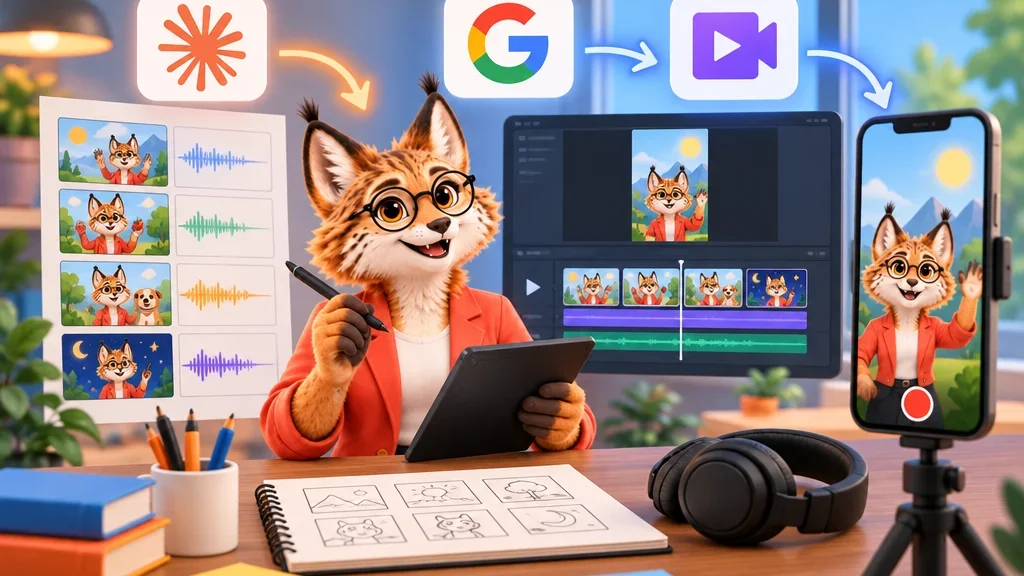
Frame the object for a phone screen
On a computer, start a new project in Google Vids. Choose Portrait for a 9:16 frame, then Blank Vid. Add one image to each scene. You can upload your own picture, or, if your account has the option, use Insert → Generate an image to create one with Gemini, Google’s AI. Choose the tall 9:16 image format, describe a recognisable object and preview the result before you insert it. Leave room in the frame for the question and the answer.
If AI video is available on your account, open it and choose Create. Describe how the object should move, add a reference image if useful, select Portrait and insert the generated clip into the scene. A still image works for the same quiz format. I’d add motion only if the viewer can still recognise the object at a glance throughout the guessing pause.
Make the answer land with the voice
Add the answer as an editable text box. In the timeline, the strip that shows when each element appears, open Show timing. Shorten the answer’s track and move it so the word first appears at the end of the pause. In Voiceover, you can generate speech for the current scene if the feature is available, or use Record to read the answer yourself. Drag the audio track so the spoken word starts when the text appears. Play the scene through, then download the finished video as an MP4 from File → Make a copy.
Check the allowance before you repeat the scene
Google lists 50 credits per month for personal accounts, with one credit per image generation or edit and one per AI voiceover. It lists 60 seconds per month for AI video clips separately. Feature access varies by account, so check which controls you see. Finish one scene and judge the pause, text placement and audio together before building the rest. If the answer comes in early, you can fix the timing while there’s still only one scene to adjust.
Ask AI about this article
Opens in a new tab with the question filled in.